Mexican Ninja Controls
Lock the layout once. The streets will not wait while you hunt a bind.
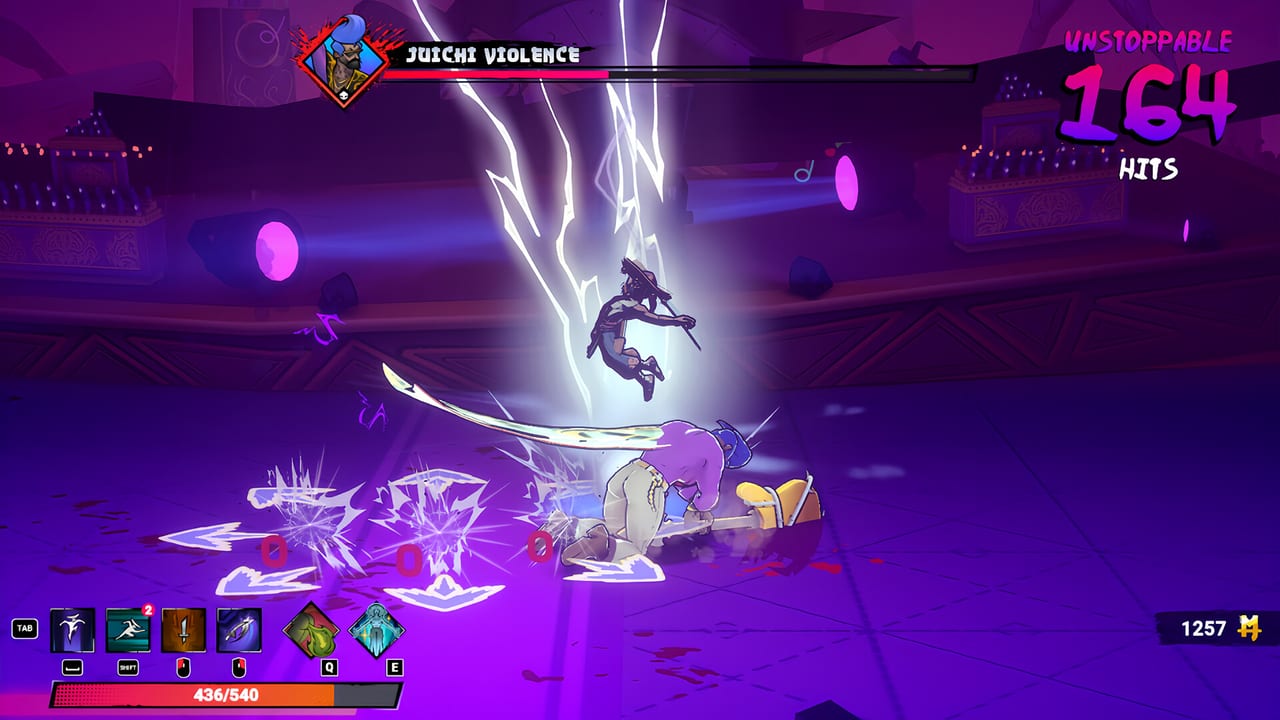
Mexican Ninja is built like a late arcade cabinet: a short action set, full controller support, and a Steam keyboard-only flag for people who refuse a pad. The pain is not “too many buttons.” The pain is fighting Nuevo Tokyo with a layout you keep editing. Read this page, pick pad or keyboard, then go back to Getting Started and combat.
Official listings confirm DualShock and DualSense support, adjustable difficulty, save-anytime, and Steam Deck Verified. That last one matters: if a bind feels huge on a laptop keyboard, try the Deck or a pad before you rewrite the config three times.
Controller layout (Xbox / PlayStation feel)
Demo coverage and hands-on previews describe a classic brawler map. Labels below use Xbox first, PlayStation in parentheses:
- Light / fast melee — X (Square). Your bread combo starter and juggle glue.
- Heavy — usually the face button next to light on a brawler (Y / Triangle in most layouts; confirm in-game). Heavies are where hangover and execution-style payoffs show up on many run cards.
- Jump — A (X). Jump attacks are how you start the Devil May Cry-ish juggle, not a dedicated jump-kick move.
- Dash — B (Circle). I-frames and reposition. Do not dash into a Chunk’s belly-bump on cooldown.
- Jutsus — triggers. You equip two Mexican Jutsus; each trigger is one slot. This is the “special” of an action RPG mashed onto a brawler.
- Parry — the universal defend/counter. Learn the exact prompt in your first tutorial; demo updates sold “parry-anything” as a headline. If your rebind buried it, put it back on a bumper you can hit without taking a thumb off movement.
If your in-game screen disagrees with a six-month-old video, trust the screen. This wiki will not invent a second official map.
Keyboard
Steam lists a keyboard-only option. Use it if you must, but expect to:
- Bind movement to WASD or arrows and keep attack keys in a cluster (J/K or nearby).
- Put parry on a key you can mash without dropping forward. Space as jump and a side key as parry is cleaner than sharing one panic key.
- Map both Jutsus to keys you will not confuse with dash. Two specials on Q and E is a common brawler habit; whatever you pick, do not move it mid-run.
Steam Deck Verified players should prefer the built-in controls over a software keyboard overlay.
What you should practice in five minutes
Ignore lore. Do this in an empty-ish street:
- Light string into heavy without rolling the stick.
- Jump light, then heavy, and see whether the enemy stays airborne. That is the juggle the combat page cares about.
- Dash through a pack, then parry the first readable swing. If you dash on every red telegraph, you will never learn parry.
- Fire Jutsu A on a packed screen, Jutsu B on a single Chunk. If both buttons do the same job, your loadout is the problem — Jutsus and the build planner.
Accessibility and comfort
Steam’s store flags are not flavor text:
- Adjustable text size and subtitles — turn them on. The game is bilingual loud on purpose.
- Custom volume — voices in English and Latin American Spanish can sit under music; raise dialogue if you actually want the jokes.
- Adjustable difficulty and playable-without-timed-input flags exist for players who need them. Use them. A pride wipe that teaches nothing is still a wipe.
- Save anytime — you are not locked into an arcade credit. Still, a run’s temporary loot is the real “save” tension.
Common bind mistakes
Parry on the same key as dash. You will dash out of every punish window. Split them.
Jutsus on face buttons you already use for light/heavy. Trigger or bumper Jutsus exist so you can special without dropping the combo. Do not “simplify” that away.
Rebinding after every death. Muscle memory is a node on the donkey tree you cannot buy. Freeze the layout before you grind Way of the Donkey.
Platform notes
PlayStation 4/5 and Xbox One / Series share the same action set with Smart Delivery on Xbox. See platforms for stores. If you bounce between Deck and a TV, keep the same pad so this page stays true.
Once the buttons disappear from your thoughts, the walkthrough and bosses pages start to make sense. Until then, this is the whole game.
Frequently Asked Questions
Quick answers to the most common questions.
What are the Mexican Ninja controls on a controller?
Expect light and heavy attacks on face buttons, jump and dash on the remaining pair, Jutsus on triggers, and a dedicated universal parry. Confirm the exact map in your tutorial — do not copy a demo video if the prompt differs.
Can I play Mexican Ninja with keyboard only?
Yes. Steam lists a keyboard-only option. Cluster attacks, keep parry off the dash key, and map both Jutsu slots to keys you will not mix up.
Does Mexican Ninja support DualSense and Steam Deck?
Yes. Steam lists DualShock and DualSense support and Steam Deck Verified. Full controller support is the intended way to learn parry timing.
Where do I go after I learn the buttons?
Read Combat for parry and juggles, then Getting Started if you still skip the Sensei shop. Boss guides come last.